Payments
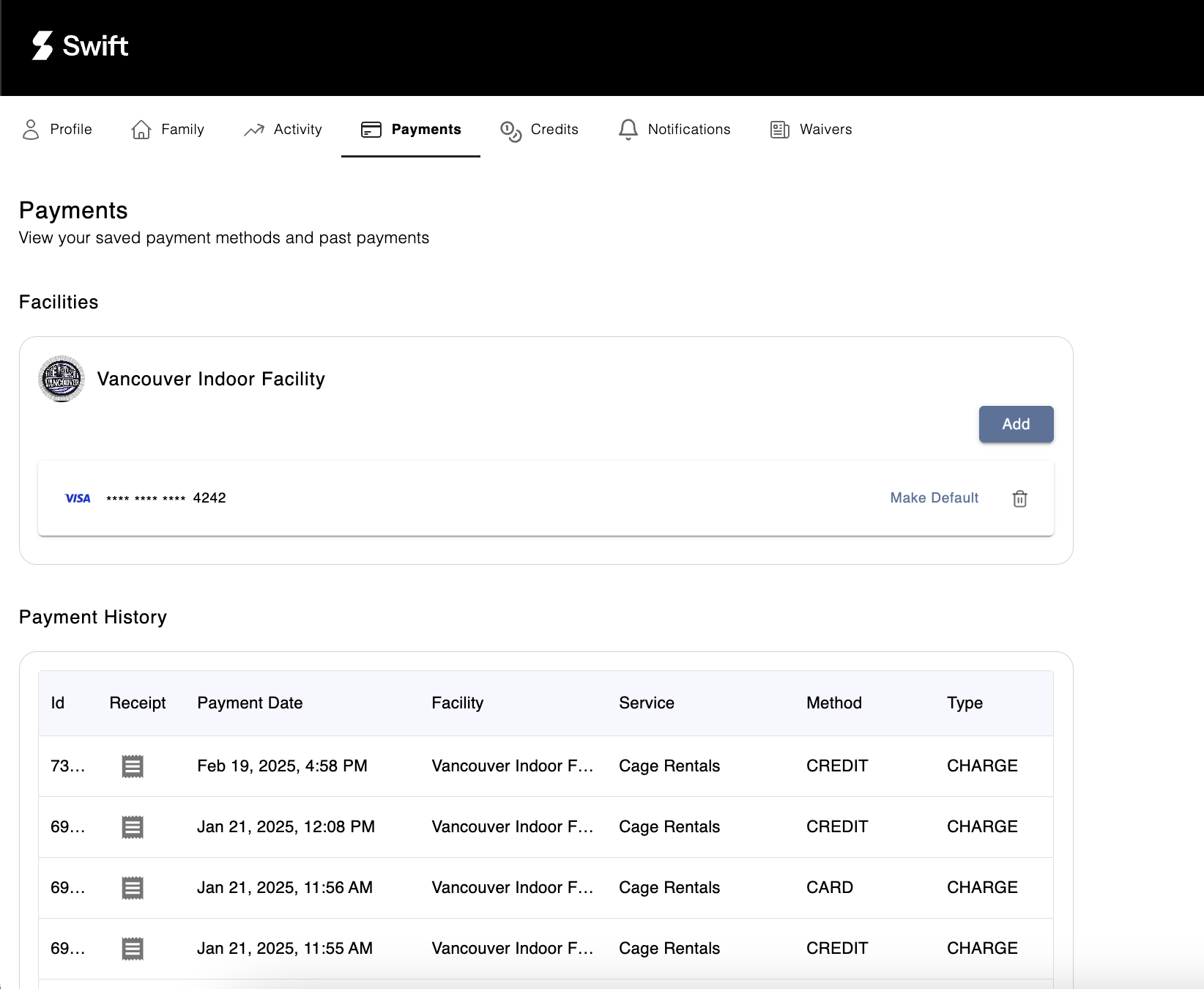
The Payments tab allows you to:
- View and update your payment information
- Review your payment history
- Download receipts
Payment Cards (credit/debit cards)
Adding a Payment Card
- Click the Add button next to the facility where you want to add your credit card.
- Fill out the Add Card form.
- Click Add to save your card details to your profile.
Setting a Default Card
If you have added multiple credit cards to your profile, you can click "Make Default" button next to the credit card to make it your main credit card which will be charged for each transaction.
Removing a Payment Card
To remove a credit card on file, click the Delete (bin) icon next to the credit card you would like to delete.
⚠️ Note: If you have an active membership, you will not be able to remove the credit card on file. You can only update your credit card information.
Payment History
The Payment History section provides a detailed record of all transactions processed for your account. Transactions are listed in descending order, with the most recent at the top.
Downloading a Receipt
- Locate the transaction you need a receipt for.
- Under the Receipt column, click the Download Receipt icon to save a PDF copy of the receipt to your device.
If you have any questions about your payments, please contact the facility directly.