Invoices
Whenever a facility creates an invoice for you, a copy will be sent to your email. You can also view and manage all of your invoices anytime by logging into your Swift account.
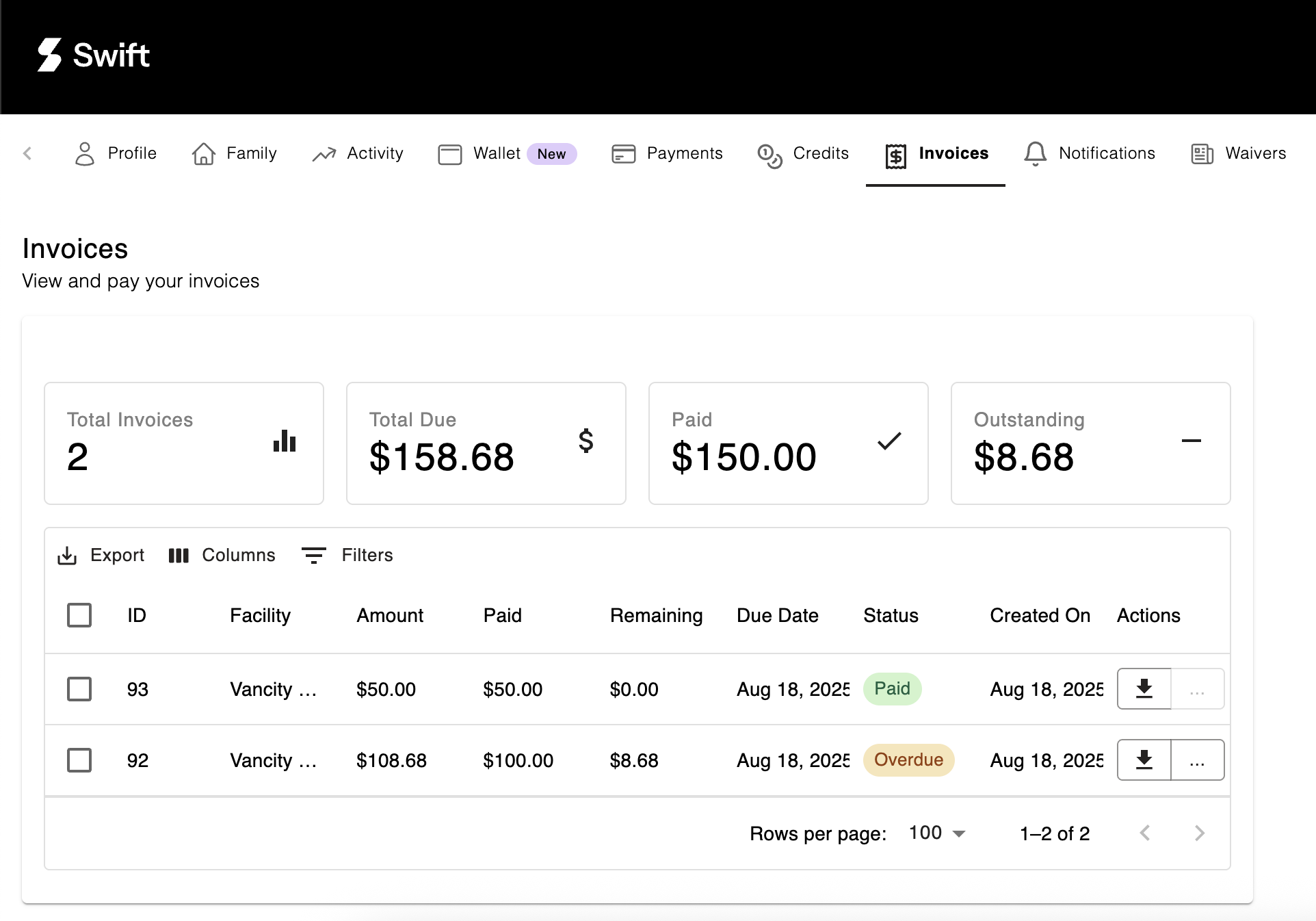
Accessing Your Invoices
- Log in to your Swift account.
- In the top right corner, select your profile icon, then click My Account.
- Go to the Invoices tab.
- You’ll see a list of all invoices tied to your account.
Downloading a PDF Copy
- Find the invoice you’d like to download.
- Click the Download PDF icon.
- A PDF version will save directly to your device.
Making a Payment
- Open the invoice you’d like to pay, then click the More button (three horizontal dots).
-
Select Make Payment.
Under Amount, enter how much you’d like to pay (full amount or an installment).
Under Payment Method, choose:
- Credit Card, or
- Wallet (if you have available funds).
- Click Complete Payment to finish.
Sharing the Invoice Payment Link
Need someone else to pay an invoice on your behalf? Share a direct link:
- Next to the invoice, click the More button (three horizontal dots).
- Select Share Payment Link.
- Click the Copy icon to copy the invoice URL.
- Paste and send the link to whomever needs to make the payment.